
3uTools is one of the most popular all-in-one management tools for iPhone, iPad, and iPod devices. It includes many useful features such as hardware diagnostics, custom ringtone creation, Smart Flash for firmware installation, and full backup and restore options. It also helps users manage apps, photos, videos, music, and many other files from a computer.
In the past, 3uTools was available only for Windows computers. Now, Mac users also have ways to use it. Some versions can run directly on macOS through a native .dmg installer. Others can run through Windows virtualization software like Parallels Desktop or CrossOver when full Windows features are needed.
This guide explains how to install 3uTools for Mac on both Apple Silicon Macs (M1, M2, M3, and M4) and Intel Macs. It also explains how to deal with macOS security warnings, connect iPhones and iPads properly through USB, and solve common installation and connection problems.
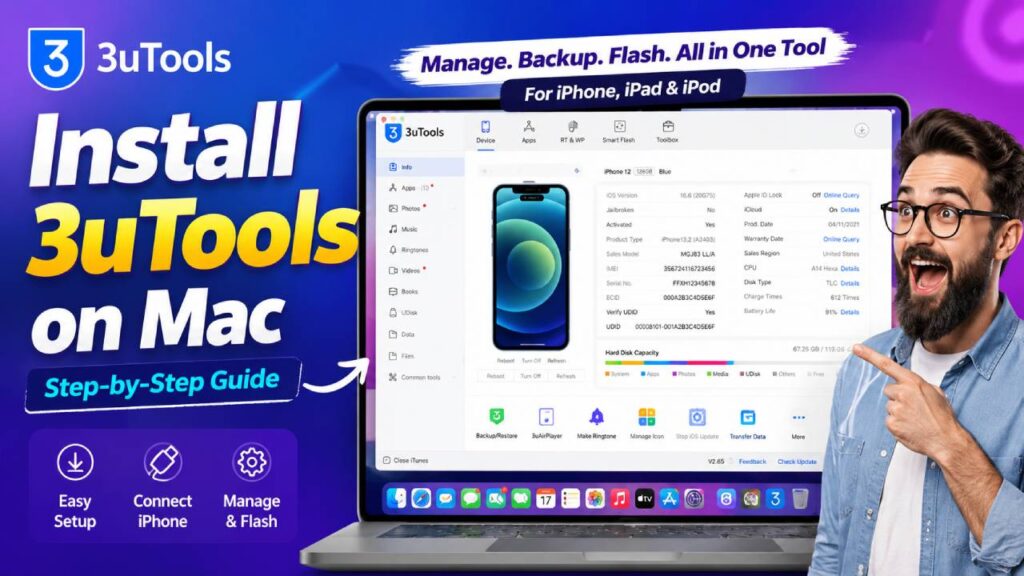
3uTools for Mac: System Requirements and Compatibility
Before starting the installation, make sure the Mac meets the basic requirements. The requirements are slightly different depending on whether 3uTools runs directly on macOS or inside a Windows virtual machine.
| Specification | Native macOS Installation | Virtual Machine Installation (Parallels / CrossOver) |
|---|---|---|
| Operating System | macOS 10.15 Catalina or later | macOS 11 Big Sur or later |
| Processor | Apple Silicon (M-Series) or Intel x86_64 | Apple Silicon or Intel |
| Memory (RAM) | Minimum 4 GB (8 GB recommended) | Minimum 8 GB (16 GB recommended) |
| Free Storage | Around 500 MB | At least 20 GB for Windows and firmware files |
| USB Connection | USB-A or USB-C. A direct connection is recommended. Avoid unpowered USB hubs. | USB-A or USB-C with USB Passthrough enabled |
Method 1: Install 3uTools with the Native macOS Installer (.dmg)
Using the macOS .dmg installer is the quickest way to install 3uTools on a Mac.
Step 1: Download the Official DMG File
Download the correct 3uTools .dmg installer for macOS.
Make sure the installer matches the Mac processor, whether it is Apple Silicon or Intel.
After the download finishes, find the installer inside the Downloads folder.
Step 2: Install the Application
Double-click the downloaded .dmg file.
The installer window will open.
Drag the 3uTools icon into the Applications folder shortcut.
Wait until the copy process finishes.
After the installation is complete, eject the mounted disk image from Finder.
How to Allow 3uTools Through macOS Gatekeeper
Since 3uTools is not downloaded from the Mac App Store, macOS may stop it from opening the first time.
A message may appear saying:
- “3uTools cannot be opened because it is from an unidentified developer.”
- “macOS cannot verify that this app is free from malware.”
This is a normal Gatekeeper security warning.
Allow the App in System Settings
Open System Settings. On older versions of macOS, open System Preferences.
Select Privacy & Security.
Scroll down until the Security section appears.
Find the message related to 3uTools.
Click Open Anyway.
Enter the Mac administrator password or use Touch ID if available.
Click Open again to confirm.
Another Quick Method
Open the Applications folder.
Right-click or Control-click the 3uTools application.
Choose Open.
Click Open again when the confirmation window appears.
After this step, macOS will remember the permission and future launches should work normally.
Method 2: Run the Full Windows Version with Parallels Desktop
Some advanced features inside 3uTools need Windows to work properly. These include certain firmware flashing tools, driver functions, and some jailbreak-related features.
Running 3uTools inside a Windows virtual machine gives the best compatibility for users who need every feature.
Step 1: Install the Virtual Machine
Download and install Parallels Desktop on the Mac.
Open Parallels.
Follow the setup instructions to install Windows 11 for ARM on Apple Silicon Macs or the standard Windows version on Intel Macs.
Complete the normal Windows setup process.
Step 2: Install 3uTools in Windows
Open Microsoft Edge inside Windows.
Download the Windows installer named 3uTools_Setup.exe.
Run the installer.
Click Install and wait for the installation to finish.
Step 3: Enable USB Passthrough
For Windows to detect the connected iPhone or iPad, the USB device must be connected directly to the virtual machine.
Connect the iPhone or iPad to the Mac using a USB cable.
Parallels will ask where the device should connect.
Choose Connect to Windows.
Another option is to open Devices > USB & Bluetooth from the Parallels menu and select the connected Apple device.
When the iPhone asks Trust This Computer, tap Trust and enter the device passcode.
After this step, 3uTools should detect the device.
Troubleshooting Common Installation and Connection Problems
Sometimes the installation finishes without problems, but the device still does not connect correctly. The following solutions fix the most common issues.
1. iPhone or iPad Is Not Detected
Apple Mobile Device Support Is Missing
When using the Windows version of 3uTools inside a virtual machine, the Apple Mobile Device Service (AMDS) must be running.
If the service is missing or stopped, reinstall iTunes or the Apple Devices application inside Windows. This installs the required Apple drivers again.
USB Cable or USB Port Problems
Use an original Apple Lightning or USB-C cable whenever possible.
Some third-party cables only support charging and cannot transfer data correctly.
Avoid connecting through unpowered USB hubs or multi-port adapters because they can interrupt the connection during firmware flashing.
A direct USB connection is much more reliable.
Trust This Computer Was Not Approved
After connecting the iPhone or iPad, the device shows a Trust This Computer message.
Tap Trust and enter the device passcode.
If this step is skipped, 3uTools cannot communicate with the device.
2. “App Is Damaged and Can’t Be Opened”
Sometimes macOS may show a message saying the application is damaged and should be moved to the Trash.
In many cases, this happens because the application’s quarantine flag is still active.
The flag can be removed manually.
Open the Terminal application.
Press Command + Space, type Terminal, and open it.
Run the following command:
sudo xattr -rd com.apple.quarantine /Applications/3uTools.app
Press Enter.
Type the Mac administrator password when requested.
Press Enter again.
After the command finishes, open 3uTools from the Applications folder.
3. Firmware Flashing Stops at 18% or 20%
Firmware flashing may stop during the process for several reasons.
Driver Conflicts
Background services from iTunes or other Apple software can sometimes interrupt communication.
Close unnecessary Apple applications before starting the flashing process.
Recovery Mode or DFU Mode Reconnection
During firmware installation, 3uTools may restart the device into Recovery Mode or DFU Mode.
When this happens, the USB connection disconnects for a short time before reconnecting.
If using Parallels Desktop, make sure every Apple device that reconnects in DFU or Recovery Mode is automatically connected back to Windows instead of macOS.
Otherwise, the flashing process may stop before completion.
Security and Maintenance Tips
Always Create a Backup First
Before flashing firmware, installing custom changes, or performing system downgrades, create a complete encrypted backup of the iPhone or iPad.
A backup makes it much easier to restore personal data if something unexpected happens.
Download Trusted Installation Files
Only use trusted installation files for 3uTools.
Modified or unofficial installers may include unwanted software or unsafe files.
Using a trusted installer helps keep both the Mac and iOS device safe.
Keep macOS Updated
Install the latest macOS updates whenever they become available.
System updates often improve USB support, device drivers, security, and overall stability.
Keeping macOS updated also helps maintain a more reliable connection between the Mac and iPhone during backups, firmware flashing, and other advanced tasks in 3uTools.