
Anyone who has downloaded a large game file, a mod package, a custom ROM, or a split archive on Android has probably faced a common problem. The file refuses to extract properly, or the archive manager cannot read all the parts correctly.
Android’s built-in file manager can handle basic tasks, but it often struggles with large archives, password-protected files, and advanced compression formats. Many users also try WinRAR for Android because of its strong reputation on desktop computers. However, mobile devices have different requirements, and desktop software does not always work as well on Android.
WinRAR is still one of the most trusted archive tools on Windows. However, many Android users now search for ZArchiver Apk Download because it offers greater control, better file compatibility, and stronger support for modern Android storage systems.
This article explains why ZArchiver performs better than WinRAR on Android, how it handles complex archives, and how to get the best results from it.
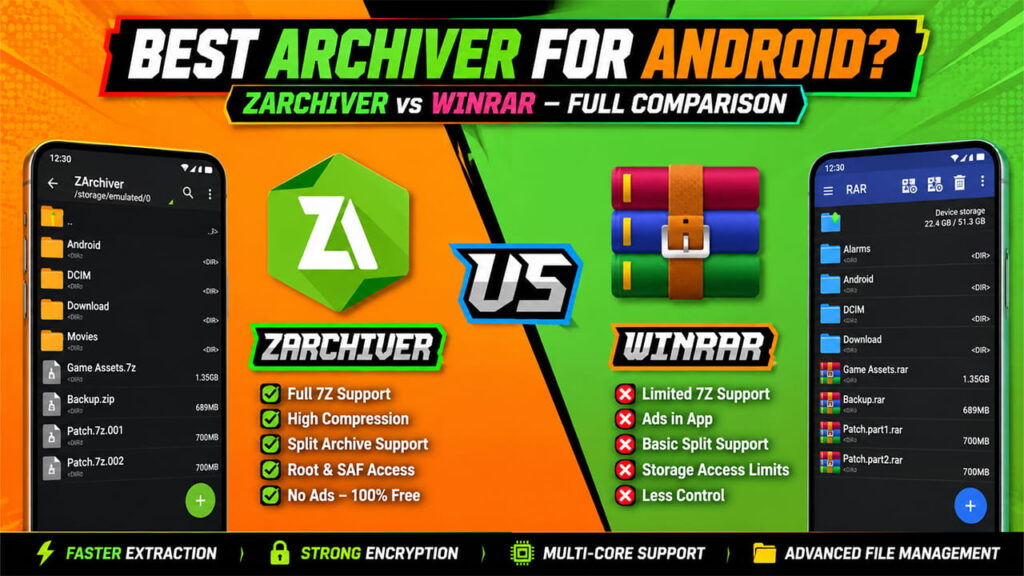
The Mobile Compression Challenge: WinRAR vs. ZArchiver
WinRAR became popular because it works deeply with the Windows operating system. Android works differently. New Android versions use strict storage rules and permissions, so archive tools need to be designed specifically for mobile devices.
As a result, the Android version of WinRAR feels more like a desktop application adapted for mobile. ZArchiver, on the other hand, was built with Android in mind from the beginning.
Feature Comparison
| Feature | WinRAR (RAR for Android) | ZArchiver |
|---|---|---|
| Interface | Ad-supported desktop-style layout | Clean Android-style interface |
| 7Z and LZMA2 Support | Extraction only | Full creation and extraction |
| Split Archives | Basic support | Full support for many split formats |
| Storage Access | Limited by Android restrictions | Better support through SAF and Shizuku |
| Multi-Core Processing | Basic | More control over CPU usage |
| Ads | Yes | No |
Although both applications can extract common archives, ZArchiver gives users more control over advanced tasks.
The Main Advantage: Better Support for 7Z Compression
One of the biggest reasons users choose ZArchiver is its support for the 7Z format.
The 7Z format uses powerful compression methods such as LZMA and LZMA2. These methods often create smaller archive sizes than traditional ZIP files. Since many Android users share files through 7Z archives, strong support for this format is important.
WinRAR focuses mainly on the RAR format. ZArchiver supports both reading and creating 7Z archives. More importantly, it allows users to adjust advanced settings directly on their phones.
Users can control:
- Dictionary size
- Word size
- Solid archive settings
- Compression level
- Encryption options
These settings are usually available only in desktop archive software.
Why Power Users Prefer ZArchiver
The difference becomes even clearer when looking at how both applications work behind the scenes.
1. Better Multi-Core Processing
Modern smartphones use processors with multiple cores. Many devices use ARM big.LITTLE architecture, which combines powerful cores with power-saving cores.
ZArchiver can take better advantage of these resources during compression.
When working with large files, ZArchiver can use more CPU threads and complete tasks faster. Large archives that take a long time in other applications may finish much sooner in ZArchiver.
For users handling multi-gigabyte files, this can save a significant amount of time.
2. Better Handling of Android Storage Restrictions
Android 11 introduced Scoped Storage, which added stronger protection for folders such as:
- Android/data
- Android/obb
Many applications cannot freely access these locations anymore.
This creates problems for users installing game mods, patch files, or custom assets.
ZArchiver works around these limitations by supporting Android’s Storage Access Framework (SAF). It also works with Shizuku for users who need additional access options.
Because of this, files can often be moved or extracted into protected locations without rooting the device.
3. Strong Support for Split Archives
Large downloads are often divided into several smaller files.
Examples include:
- file.zip.001
- file.zip.002
- file.zip.003
The same method is commonly used with 7Z and RAR archives.
Many archive tools struggle when handling these files. They may fail to recognize all archive parts or require extra steps before extraction.
ZArchiver reads these split archives automatically. When all parts are present, it combines them correctly and extracts the contents without additional tools.
This makes it very useful for ROM packages, game assets, backups, and large downloads.
How to Create a High-Compression 7Z Archive
Creating highly compressed archives is one of ZArchiver’s strongest features.
Follow these steps to achieve better compression results.
Step 1: Select Files
Open ZArchiver and locate the file or folder that needs compression.
Press and hold the item to open the action menu.
Step 2: Choose Compression
Tap “Compress…” to open the advanced archive settings.
Step 3: Select Archive Format
Choose “7z” as the archive format.
This format usually provides better compression than ZIP.
Step 4: Set Compression Level
Select “Ultra” from the compression level menu.
This setting provides the highest compression ratio but requires more processing power.
Step 5: Configure Advanced Settings
For best results:
- Compression Method: LZMA2
- Dictionary Size: 32 MB or 64 MB
- Solid Archive: Enabled if suitable
- Encryption: Optional
Devices should have enough free memory before using large dictionary sizes.
Step 6: Start Compression
Tap “OK” and allow the process to complete.
The compression time depends on file size, processor speed, and selected settings.
Fixing Common ZArchiver Problems
Even reliable applications can encounter issues. Most errors are caused by Android permissions or damaged archives.
Error: “Operation Completed With Errors” or “Access Denied”
This usually happens when extracting files directly into protected folders.
Android blocks access to many system locations by default.
Solution
Extract the archive into a normal folder first, such as Downloads.
After extraction, copy the files to the final destination.
When Android requests permission through SAF, approve the request.
This method usually solves the problem.
Error: “Archive Is Corrupted”
This error often appears when a split archive is incomplete.
For example:
- data.7z.001
- data.7z.002
- data.7z.003
If one file is missing, extraction will fail.
Solution
Make sure every archive part is present in the same folder.
Check that all filenames match exactly.
Sometimes browsers rename downloaded files by adding numbers such as:
- data(1).7z.001
Rename the file so it matches the original sequence.
Problem: App Closes During Compression
Large archives with Ultra compression require a lot of memory.
Android may force-close the application when available RAM becomes too low.
Solution
Reduce the Dictionary Size setting.
Try:
- 16 MB
- 8 MB
Compression may be slightly less efficient, but stability usually improves.
Final Words
WinRAR remains one of the most respected archive tools on desktop computers. Its reputation is well deserved. However, Android users face different challenges than desktop users.
Modern Android devices require better support for storage permissions, split archives, and mobile hardware. This is where ZArchiver performs exceptionally well.
Its clean interface, strong 7Z support, advanced compression controls, and excellent handling of Android storage restrictions make it one of the most useful archive tools available for Android.
Whether the task involves game modifications, custom ROM packages, large backups, encrypted archives, or split downloads, ZArchiver provides the level of control that many mobile users need.
For users looking for a true desktop-like archive experience on Android, ZArchiver remains one of the best choices available today.