
Running full Windows desktop programs and PC games on an Android phone was once seen as a difficult experiment. Today, Winlator makes it possible for many users. It creates a special compatibility environment inside Android that allows Windows software to run directly on a phone.
Because of this, users can run older productivity programs and many classic PC games without using cloud gaming services or remote computers.
Even so, making Windows software work on Android is not simple. Windows programs are designed for Intel and AMD processors that use the x86 or x64 architecture. Android phones use ARM processors, which work in a very different way.
This guide explains how Winlator Emulator works, the hardware needed for good performance, how to set up a container correctly, and what level of performance users can realistically expect.
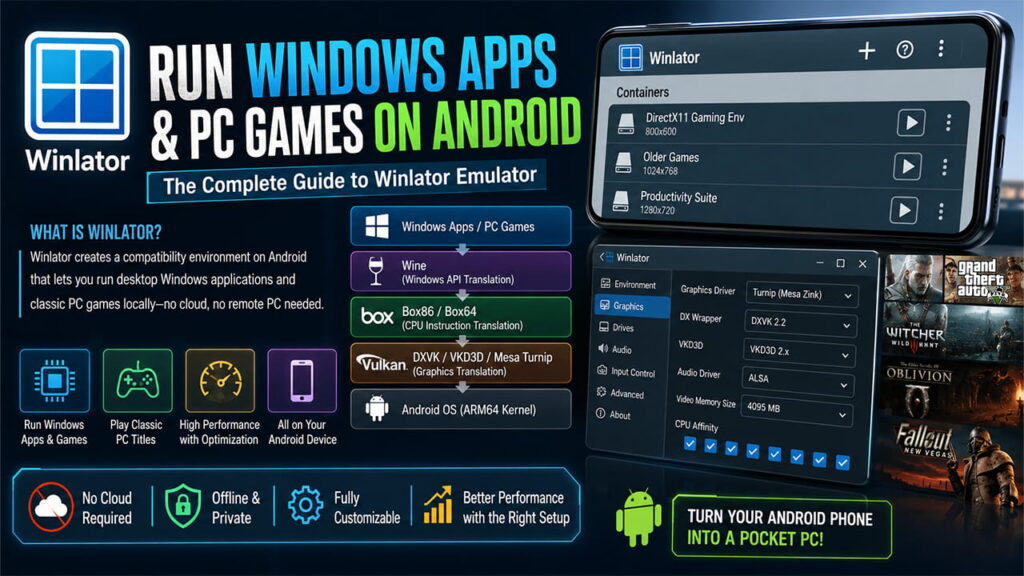
How Winlator Works
To run Windows software on an ARM64 Android device, Winlator uses several layers that work together.
+-------------------------------------------------------+
|            Windows Application / PC Game              |
+-------------------------------------------------------+
                           |
                           V
+-------------------------------------------------------+
|         Wine (Windows API Translation Layer)          |
+-------------------------------------------------------+
                           |
                           V
+-------------------------------------------------------+
|     Box86 / Box64 (CPU Instruction Translation)       |
+-------------------------------------------------------+
                           |
                           V
+-------------------------------------------------------+
|   Graphics Wrappers (DXVK / VKD3D / Mesa Turnip)      |
+-------------------------------------------------------+
                           |
                           V
+-------------------------------------------------------+
|       Android OS Native Layer (ARM64 Kernel)          |
+-------------------------------------------------------+
Each layer has a different job.
1. CPU Instruction Translation: Box86 and Box64
An ARM processor cannot directly understand software made for x86 or x64 processors.
To solve this problem, Winlator uses Box86 for older 32-bit programs and Box64 for newer 64-bit programs.
These tools use Dynamic Binary Translation (DBT). Instead of reading every instruction one by one, they convert groups of x86 or x64 instructions into ARM64 instructions while the program is running.
As a result, Windows software can communicate with the phone’s processor in a way the hardware can understand.
This process requires a lot of CPU power, but it is much faster than traditional instruction emulation.
2. Windows API Translation: Wine
Winlator does not run a full copy of Microsoft Windows.
Instead, it uses Wine, which stands for “Wine Is Not an Emulator.”
Wine acts as a compatibility layer between Windows software and Android.
When a Windows application asks the operating system to perform a task, Wine intercepts that request and translates it into commands that Android can understand.
For example, when a program needs to:
- Open a window
- Create a folder
- Access files
- Play sound
- Use system resources
Wine converts those Windows API calls into Linux-compatible operations.
Because of this direct translation process, Wine uses much less memory and storage than a virtual machine running a full Windows installation.
3. Graphics Translation: DXVK, VKD3D, and Mesa Turnip
Graphics processing is often the most difficult part of running PC games on Android.
Most Windows games use Microsoft’s DirectX graphics API. Android devices do not support DirectX natively.
Winlator solves this problem through several graphics translation layers.
DXVK
DXVK converts DirectX 9, DirectX 10, and DirectX 11 commands into Vulkan commands.
Modern mobile GPUs can process Vulkan much more efficiently.
Because of this, DXVK is one of the most important parts of Winlator’s gaming performance.
VKD3D
VKD3D handles DirectX 12 translation.
DirectX 12 games are usually much heavier and require more processing power.
Although VKD3D allows some DirectX 12 titles to run, performance can vary greatly depending on the phone.
Mesa Turnip
Mesa Turnip is an open-source Vulkan driver made mainly for Qualcomm Adreno GPUs.
Many users prefer Turnip because it often provides:
- Better performance
- Better Vulkan support
- Fewer graphical issues
- Improved game compatibility
For Snapdragon devices, Turnip is usually the recommended graphics driver.
Hardware Requirements
Hardware plays a major role in Winlator performance.
Better processors, faster memory, and stronger cooling systems generally produce better results.
System-on-Chip (SoC) Choice
Qualcomm Snapdragon (Recommended)
Snapdragon processors usually deliver the best Winlator experience.
The main reason is the strong support provided by the Mesa Turnip driver for Adreno GPUs.
This combination often results in:
- Higher frame rates
- Better stability
- Fewer graphics problems
MediaTek Dimensity and Samsung Exynos
These chipsets can run Winlator, but compatibility is usually lower.
Most of these devices use Mali or Xclipse GPUs.
Since Turnip is not available for these GPUs, users normally rely on VirGL or Mesa Zink.
Compared to similar Snapdragon devices, performance may drop by 30% to 50%.
Some games may also show graphical glitches or rendering errors.
RAM and VRAM Allocation
Winlator can start on devices with 6GB RAM.
However, 8GB to 12GB RAM is a much better target for gaming.
Android aggressively manages memory. If memory becomes limited, Android may close Winlator unexpectedly.
More RAM allows larger VRAM allocations inside the container and helps prevent crashes.
Popular Community Forks
The official Winlator release from BrunoDev is usually the most stable version.
However, several community forks focus on different goals.
Winlator GLIBC / CMOD
Android normally uses the Bionic C library.
Some modern games expect GNU C Library (GLIBC) features.
The GLIBC fork adds support for those requirements and helps certain games launch successfully.
Winlator Ludashi
This version includes special optimizations for games made with:
- Unity Engine
- Unreal Engine
It often fixes engine-related problems and improves compatibility for those titles.
Installation and Setup
Following the correct setup process can improve performance and reduce crashes.
1. Install the APK
Download a trusted Winlator APK package.
Enable installation from unknown sources in Android settings.
Install the application and launch it.
During the first launch, Winlator extracts important files and creates its internal directory structure.
2. Create a Container
Tap the “+” button.
Create a new container and give it a name such as:
“DirectX11 Gaming Env”
Each container works like a separate environment with its own settings, drivers, and registry data.
3. Configure Resolution
Choose a resolution suitable for mobile hardware.
Recommended options include:
- 800×600 for older games
- 1280×720 for newer widescreen games
Avoid native phone resolutions and 1080p whenever possible.
Higher resolutions create a much heavier load on the GPU and reduce performance.
4. Configure Graphics Drivers
For Snapdragon devices:
- Graphics Driver: Turnip (Mesa Zink)
- DX Wrapper: DXVK 2.2 or newer
For Exynos and Dimensity devices:
- Graphics Driver: VirGL
Older software may work better with Wine3D instead of DXVK.
5. Allocate Resources
Open the Advanced settings section.
Set Video Memory Size according to available RAM.
Suggested values:
- 2048MB VRAM for devices with 8GB RAM
- 4095MB VRAM for devices with 12GB RAM or more
Next, enable all CPU cores in the CPU Affinity section.
This allows Winlator to spread translation work across multiple cores instead of overloading a single core.
Real-World Performance
Simple applications such as Notepad++ and older Microsoft Office versions usually run very smoothly.
Games require much more processing power, so performance varies.
DRM and Anti-Cheat Limitations
Many modern online games use advanced anti-cheat systems.
Examples include:
- Easy Anti-Cheat
- Ricochet
Some games also use strong DRM systems such as Denuvo.
These security systems often detect translation layers and prevent the game from launching.
For this reason, offline and DRM-free games usually offer the best experience.
| Game | Expected Performance | Resolution | Recommended Setup |
|---|---|---|---|
| Fallout: New Vegas | 45–60 FPS | 720p | Turnip + DXVK |
| The Elder Scrolls IV: Oblivion | 50–60 FPS | 720p | Turnip + DXVK |
| Grand Theft Auto V | 25–40 FPS | 800×600 | Turnip + DXVK |
| The Witcher 3: Wild Hunt | 15–25 FPS | 800×600 | Turnip + DXVK |
Troubleshooting
1. Container Crashes Immediately
Cause
A graphics driver conflict or unstable Box64 settings may cause startup failures.
Solution
Switch the graphics driver from Turnip to VirGL.
If the issue continues, change the Box64 profile from Aggressive to Safe or Default.
Although performance may decrease slightly, stability often improves.
2. Black Screen with Working Audio
Cause
The game may be trying to use a fullscreen mode that Winlator cannot display correctly.
Solution
Open the Winlator overlay menu.
Turn Full Screen off.
Wait a few seconds.
Turn Full Screen back on.
If the problem remains, launch the game in Windowed Mode using launch options such as:
-window-w
3. Thermal Throttling and FPS Drops
Cause
Dynamic Binary Translation creates heavy CPU and GPU workloads.
As device temperature rises, the processor reduces speed to protect itself.
Solution
Close unnecessary background processes.
Lower the game resolution to 800×600.
Limit the frame rate to 30 FPS whenever possible.
This reduces power usage and helps maintain stable performance over longer gaming sessions.
4. Missing Controls or Input Problems
Cause
Some games do not properly recognize Winlator’s built-in touch controls.
Solution
Install InputBridge.
Run InputBridge before launching Winlator.
InputBridge provides a virtual controller layer that improves compatibility.
It can also help users:
- Map touchscreen controls
- Configure custom layouts
- Connect Bluetooth controllers
- Use Xbox controllers
- Use PlayStation controllers
Final Thoughts
Winlator represents a major step forward for mobile computing.
By combining Box64, Wine, DXVK, VKD3D, and Vulkan-based graphics translation, it allows Android devices to run many Windows applications and classic PC games directly on local hardware.
The setup process still requires some technical knowledge. Users often need to adjust container settings, graphics drivers, memory allocation, and performance profiles. Thermal management also remains important during long gaming sessions.
Even with these challenges, Winlator has shown that modern Android phones can do much more than traditional mobile tasks. With the right hardware and configuration, many desktop applications and older PC games can run successfully on a device that fits in a pocket.